

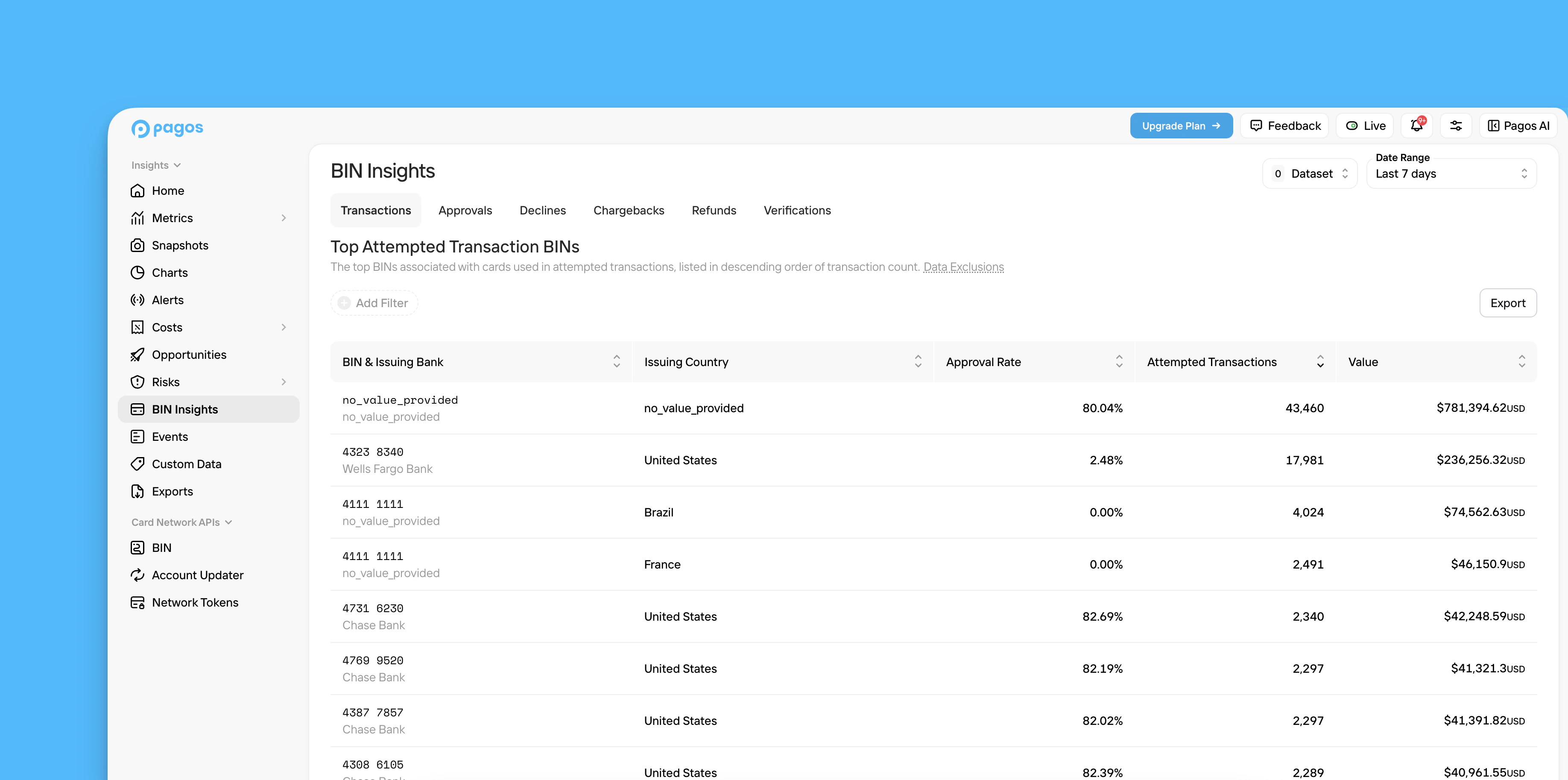
Navigating BIN Insights
1
Navigate to BIN Insights
Click BIN Insights in the main navigation.
2
Select a tab
Choose from the following tabs to populate your BINs table:
Transactions
Transactions
The top BINs associated with cards used in attempted transactions, listed in descending order of attempted transaction count; each row also contains the issuing bank, issuing country, approval rate, and total attempted transaction value
Approvals
Approvals
The top BINs associated with cards that were approved, listed in descending order of approved transaction count; each row also contains the issuing bank, issuing country, approval rate, and total approved transaction value
Declines
Declines
The top BINs associated with cards that were declined, listed in descending order of declined transaction count; each row also contains the issuing bank, issuing country, decline rate, and total declined transaction value
Chargebacks
Chargebacks
The top BINs associated with cards used in transactions that were ultimately disputed, listed in descending order of the chargeback count; each row also contains the issuing bank, issuing country, chargeback rate, and total chargeback value
Chargeback Rate Column Limitations:
- You can’t sort this table by the Chargeback Rate column
- When you Export the data in this table, the downloaded CSV won’t include the Chargeback Rate data
Refunds
Refunds
The top BINs associated with cards used in transactions that were ultimately refunded, listed in descending order of the refunded transaction count; each row also contains the issuing bank, issuing country, and total refunded transaction value
Verifications
Verifications
The top BINs associated with cards used in attempted verifications, listed in descending order of attempted verification count; each row also contains the issuing bank, issuing country, verification approval rate, and total attempted verification value
3
Set date range
Use the Date Range filter in the top-right corner of the page to select the time period you want to view BIN data for.
4
Apply filters
To apply a filter, click Add Filter above the table, then click a filter in the drop-down menu; select your preferred filter parameters and click Apply Filters. To remove a filter, click the X beside the filter name.
5
Adjust the dataset
Click Dataset to filter out duplicate or pending transactions (this feature is only available in the Transactions, Approvals, and Declines tabs):
- Click the Deduplicate toggle to turn on this filter, then select the type of transactions you want to deduplicate; the options include Retries and any custom deduplication options you’ve set up.
- Click the Pending Transactions toggle to remove pending transactions from your BIN data.
6
Sort the table
Click any column header to sort the table by that column in descending order; click it again to sort in ascending order.
7
Export your data
Click Export to download a CSV file of the data in that tab’s table.
8
Select a BIN to learn more
Click a row in the table to open a BIN Details page containing additional information about the BIN.
BIN Details
From any BIN Insights tab, click a row in the table to open a corresponding BIN Details page. This page lists all the standard and enhanced data we have in our BIN database for a given BIN. For a full list of the data fields available, see our BIN Data API Dictionary. On the right side of the BIN Details page, we display Processing Activity for the BIN. This includes:- Attempted transaction count and cumulative value
- Approved transaction count, cumulative value, and approval rate
- Declined transaction count, cumulative value, and decline rate
- Total chargeback count and cumulative value
- Total refund count and cumulative value
- Verified transaction count, cumulative value, and verification approval rate