

Managing General Settings
To manage your Organization’s general settings:1
Sign in to the Pagos Service Panel.
2
Click the settings icon in the top-right corner of the Pagos Service Panel, then click Settings under your Organization’s name. This opens a pop-up with your Organization’s information.
3
In the General page, click Update Profile to add or change your Organization name and logo.
4
Click Add domain to add a verified domain to your Organization.
Adding a Verified Domain
If your business has a verified domain, you can add it to your Pagos Organization. To add a verified domain:1
Click the settings icon in the top-right corner of the Pagos Service Panel, then click Settings under your Organization’s name.
2
In the Verified domains section of the General page, click Add domain.
3
Enter your domain, then click Save.
4
Enter your email address at that domain, then click Save. You’ll receive an email to verify the domain for your Pagos Organization.
User Enrollment with Verified Domains
After you set up a verified domain, turn on Automatic Suggestions to make it easier for users with email addresses on that domain to join your Pagos Organization. To turn this on, click the … icon beside your verified domain, then click Manage.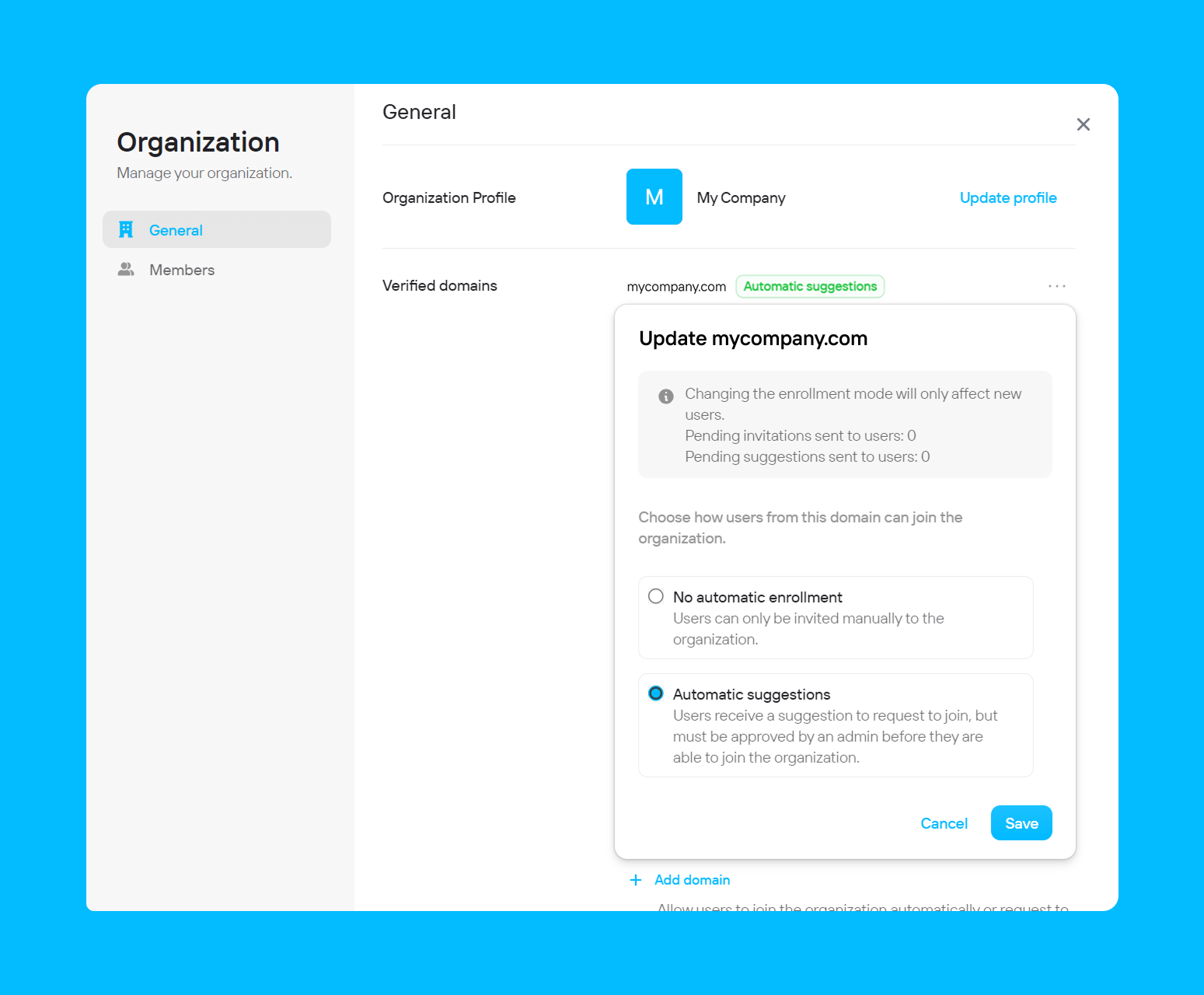
- No automatic enrollment - Regardless of the user’s email address domain, they can only join your Pagos Organization via an email invitation.
- Automatic suggestions - When a user with an email address on your verified domain manually signs up for a Pagos account, they’ll have the option to join your Organization automatically. See our New User Onboarding Guide for details on how this looks for a new user on your verified domain. An Admin in your organization will manage requests to join your Organization.
Managing Organization Members
You can manage which Pagos users have access to your Organization within the Members page of your Organization settings. To navigate directly to this page, click Team under your company name in the main settings menu. The Members tab displays a list of Pagos users in your Organization and their role (Member or Admin). Each user has their own Pagos account with unique login credentials.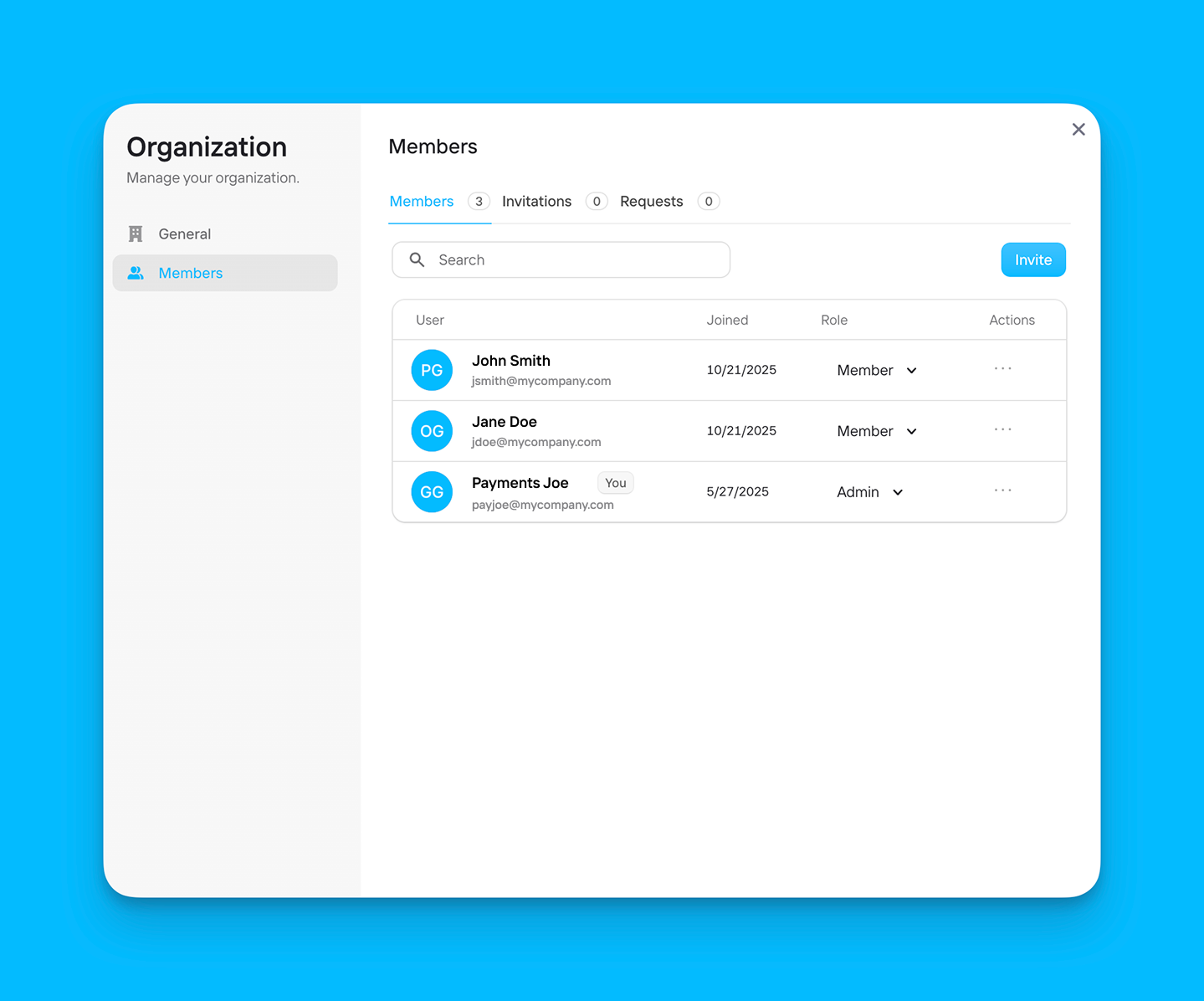
Inviting New Members
To invite new users to join the organization:1
In the Members or Invitations tabs of the Members page, click Invite
2
Enter the user's email address
You can invite multiple members by adding each email address, separated by spaces or commas.
3
Set user roles
Use the Role drop-down menu to assign a role to the user(s):
- Members can access the Pagos Service Panel
- Admins can access the Pagos Service Panel, edit data connections, make changes to the Organization’s settings, and manage members
4
Click Send invitations
Approving Member Requests
To approve a request to join your Organization from an account with your verified domain, navigate to the Requests tab of the Members Page. Beside the user’s name, click Approve. Click Reject to deny the request.Customization Opportunities
Every merchant’s business is different, and sometimes the standard set of filters and dimensions in Pagos don’t capture what matters most to you or how you like to segment data. As such, we offer the following customization options:Adding a Custom MID Hierarchy
If your MIDs are organized into separate brands or business units, we can assist you in building out a custom hierarchy within the Pagos Insights platform. This allows your users to filter the entire Pagos Service Panel to only show data for the MIDs associated with an individual business unit. Admins in your organization can even restrict users by granting them visibility to only those business units they need access to. Your business can be broken into up to two tiers; for example, if your business manages multiple brands globally, you could designate each brand with one tier and each country with your second tier. Work with your Pagos Account manager to establish the two tiers and all parameters within them. Once established, you can map your MIDs into the tiers of your custom hierarchy:1
Click the settings icon in the top-right corner of the Pagos Service Panel.
2
Under Data Connections, click MID Mappings.
3
Click Add Mapping Request to open a side panel.
4
Click the Mapping drop-down menu, then click the desired MID.
5
Select your first tier parameter (per our example above, the brand), then select your second tier parameter (e.g. the country).
6
Click Submit.
Adding Metadata or Soft Descriptors
If you pass your own custom metadata or soft descriptors with individual transactions, Pagos ingests that information through your data connections. Alternatively, you can use the Enrichment API to add enhanced transaction metadata to all your payment events (e.g. transactions, refunds, disputes) ingested into Pagos from all of your connected processors. You can then use our built-in Metadata and Soft Descriptor filters to view data in Pagos Insights for only those transaction with specific tags. The Custom Data dashboard serves as a record of all ingested metadata and soft descriptors; you can even add plain-text descriptions of your custom data to ensure all Pagos users in your Organization know what each data field means.Adding Custom Dimensions
In Pagos Insights, you can create and filter data visualizations to break down your payments data however you want. Beyond the built-in options for segmenting payments data (e.g. by payment method, card brand, issuing bank, etc.), we can assist you in building out custom dimensions specific to your business, based on data you already send us. For example, you can build custom dimensions to:Segment by Metadata
Segment by Metadata
Turn any custom metadata field, such as payment channel, subscription type, or campaign name into a dimension. This can be especially helpful if different processors send the same information under different metadata field names (e.g.
payment_channel on one processor and processing_channel on another); we can unify both into a single dimension.Group Existing Filter Parameters
Group Existing Filter Parameters
Define your own categories within existing data filters. For example, group issuing banks into “favorite” and “non-favorite.”
- The Dimensions drop-down menu in Charts
- As a filter option in Charts
- As a column option in the Events table
- Under Custom Dimensions on Event Details pages
Keep in mind:
- You must work with your Pagos Account Manager to build out custom dimensions.
- Custom dimensions can support up to 10,000 unique values per field.