> ## Documentation Index
> Fetch the complete documentation index at: https://docs.pagos.ai/llms.txt
> Use this file to discover all available pages before exploring further.
# Chargebacks
> Monitor chargebacks of card transaction in this high-level dashboard.
By default, the Chargebacks Metrics page excludes the following data:
* All non-card-based disputes
* SEPA chargebacks
* Chargebacks that result in Rapid Dispute Resolution (see [step 4 below](#all-chargeback-statuses) to add these back in)
* Chargebacks with the [status categories](/response-codes/chargebacks/chargeback-status-codes) of *cancelled*, *RFI*, *pre-arbitration*, *pre-dispute*, *notification\_of\_fraud*, and *pre-compliance* (see [step 4 below](#all-chargeback-statuses) to add these back in)
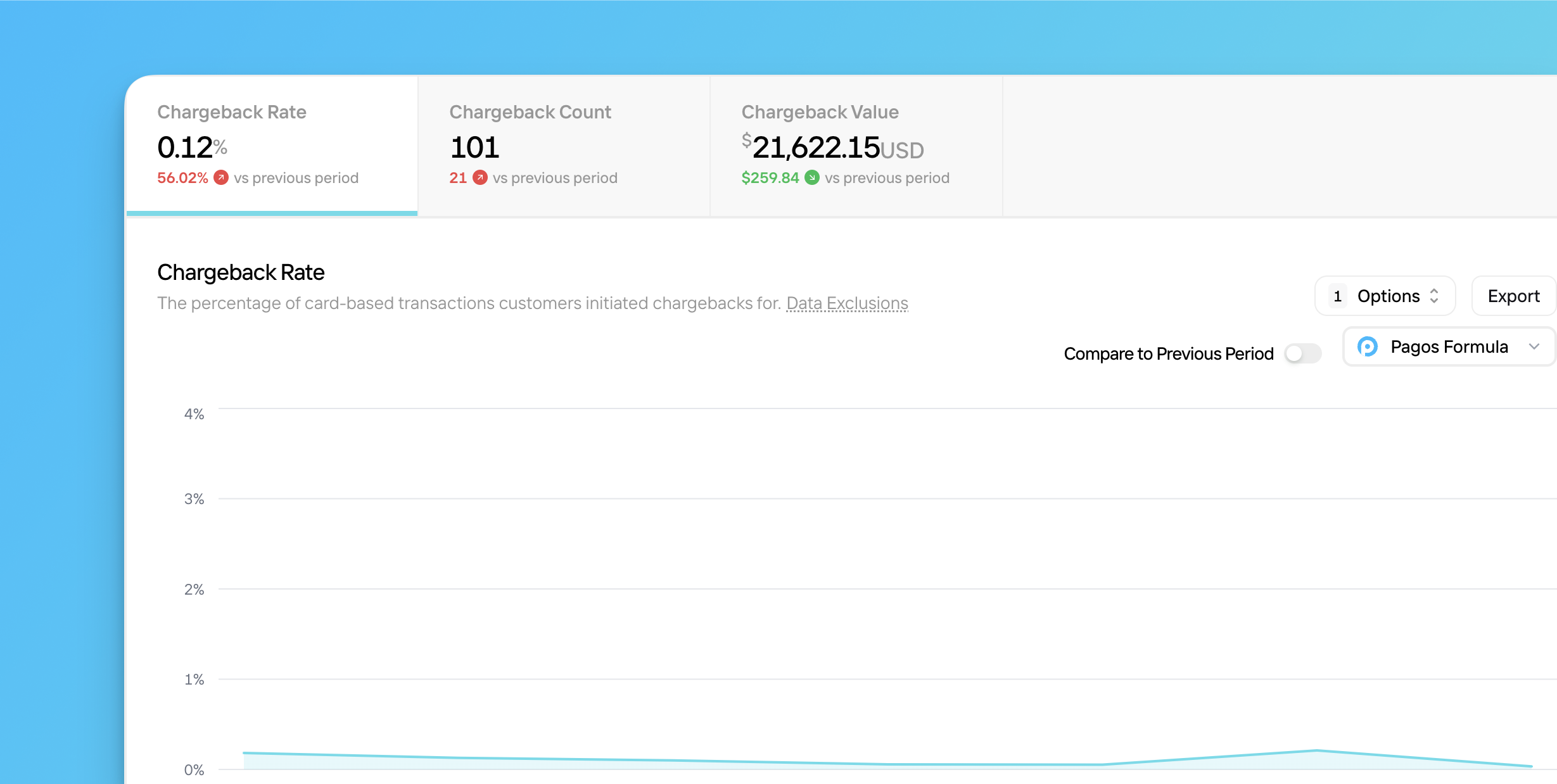 ## Navigating Chargebacks
To explore the Chargebacks Metrics pages:
Click **Metrics** in the main navigation, then click **Chargebacks**.
Each tab represents a different metric relevant to your card chargeback data. Click a tab to view a graph of the associated metric over the last seven days. Your options include:
The percentage of total card-based transactions for which customers issued chargebacks in a given time period; use the [**chargeback formula**](#pagos-formula) drop-down menu to determine which formula we use to calculate chargeback rate; the bar lists in this tab show chargeback count
The total number of successful card-based chargebacks processed in a given time period
The total combined value of all successful card-based chargebacks processed in a given time period
Use the **Date Range** filter in the top-right corner of the page to change the time period.
Click **Dataset**, then select from the following options:
Click toggle to remove pending transactions from your data.
Click toggle to include chargebacks resolved by Visa as Rapid Dispute Resolution, and those with the [status categories](/response-codes/chargebacks/chargeback-status-codes) of *cancelled*, *RFI*, *pre-arbitration*, *pre-dispute*, *notification\_of\_fraud*, and *pre-compliance*
Click the **Compare to Previous Period** toggle to view the value of that metric in the chosen time period side-by-side with that of the previous period, including the total or percent change in that value from one period to the next.
Click **Options**, then select from the following (availability varies by metric):
* **Frame Relevant Range** - Zoom in on the relevant range of values on the y-axis
* **View Distribution** - Adjust the chart to show the percent distribution of your data across a set of parameters; this option only appears for count and value tabs when using [**Focus**](/insights/metrics/overview#focus) mode
* **Show Trend Line** - Add a line demonstrating a statistical trend over the selected date range
**Trend Line Notes**
* The Trend Line option doesn't appear when using [**Focus**](/insights/metrics/overview#focus) mode.
* Trend lines exclude the most recent time interval (e.g. this week when viewing a weekly [date range](/insights/insights-data-filters#date-range), or the last two days for daily intervals), as your data for that time is still coming in and could skew the trend.
Click the **chargeback formula** drop-down to select which formula we use to calculate your chargeback rate:
This month's chargeback count divided by this month's transaction count for your entire transaction volume; when you choose Pagos Formula, the Chargeback page shows data for your entire transaction and chargeback volume
The Visa formula reflects the new Visa Acquirer Monitoring Program (VAMP) rate, which is calculated as the sum of all **non-fraud chargebacks** and **early fraud warnings**, divided by your **settled card-not-present transaction count**. When you choose Visa Formula, the Chargeback page only shows Visa transaction data.
[Learn more about VAMP in the section below.](#visa-chargeback-formula-and-vamp-data)
This month's chargeback count divided by last month's transaction count for your Mastercard transaction volume; when you choose Mastercard Formula, the Chargeback page shows data for only those transactions and chargebacks made with Mastercard cards
Use the [bar lists](#bar-lists) beneath the main graph to filter your data. Learn more about filtering Metrics pages in the [Overview](/insights/metrics/overview#filtering-metrics-pages).
Click **Export** to select from the following options:
* [**Open With...**](/insights/metrics/overview#open-with) - Select from the available options to continue your analysis in a different section of your Pagos Service Panel.
* **Aggregated Data** - Download the data displayed in the chart. If you've [filtered](/insights/metrics/overview#filtering-metrics-pages) or [focused](/insights/metrics/overview#focus) your data to any particular dimensions or parameters, these customizations will be reflected in the exported data.
* **Transaction-Level Data** - If you're subscribed to [Transaction-Level Data Exports](/insights/data-exports), you can download the data for the individual transactions included in the chart. Downloaded charts will appear in your **Exports** page; keep in mind, each report download is subject to your pricing agreement.
## Visa Chargeback Formula and VAMP Data
When you select the [**Visa Formula**](#visa-formula), the main graph in each tab automatically breaks down your **Fraud Notification (TC40)** vs. **Chargeback (TC15)** contributions to your chargeback volume. The table beneath calculates your chargeback rate, chargeback count, and transaction count for each MID; this directly mirrors Visa’s VAMP calculation methods and helps you identify exactly what’s driving your VAMP rate across MIDs and processors. Click a MID in the table to remove it from the chart.
**Only Adyen, Stripe, and Chase provide TC40 data at this time.** If we’re missing data needed to calculate your true VAMP rate—such as TC40 if you transact through any other processor—you’ll see a notice in the dashboard. This indicates your VAMP metrics might be underreported.
### VAMP Overview
Visa’s Acquirer Monitoring Program (VAMP) helps Visa monitor card-not-present fraud and chargeback risk across the ecosystem. Visa calculates a VAMP rate for each of your MIDs monthly, flagging accounts that exceed specific thresholds based on region and volume. If a MID's VAMP rate is too high, you may face additional monitoring, potential penalties, or enforcement actions.
The VAMP rate is calculated as the sum of all fraud and non-fraud chargebacks (identified in your TC15 report) and early fraud warnings (TC40 report), divided by your total settled card-not-present transaction count.
Your VAMP rate may be different from your traditional chargeback rate, as Visa includes TC40 fraud alert data in their calculation. This provides a broader view of potential fraud exposure beyond what is captured in chargebacks alone.
Visa's VAMP thresholds are as follows:
| Region | Disputes | Excessive Rate |
| ------------------------------------ | ------------------ | -------------- |
| **US, Canada, EU, and Asia Pacific** | 1,500+ | 220 BPS |
| **LAC** | 1,500+ | 150 BPS |
| **CEMEA** | 150+ and \$75,000+ | 220 BPS |
## Bar Lists
You can use bar lists on the Chargebacks page to identify how different segments of your business are impacted by chargebacks. Click on a parameter in any graph to [filter](/insights/metrics/overview#filtering-metrics-pages) all graphs on the page to only show transactions that fit the chosen parameter.
The available bar lists include:
* [Chargeback Reason](/response-codes/chargebacks/chargeback-reason-codes)
* [Chargeback Status](/response-codes/chargebacks/chargeback-status-codes)
* Processor
* Data Connection
* MID
* Payment Method
* Card Type
* Card Brand
* Stored Credential
* Customer Country
* Issuer Country
* BIN
* Issuer
## Navigating Chargebacks
To explore the Chargebacks Metrics pages:
Click **Metrics** in the main navigation, then click **Chargebacks**.
Each tab represents a different metric relevant to your card chargeback data. Click a tab to view a graph of the associated metric over the last seven days. Your options include:
The percentage of total card-based transactions for which customers issued chargebacks in a given time period; use the [**chargeback formula**](#pagos-formula) drop-down menu to determine which formula we use to calculate chargeback rate; the bar lists in this tab show chargeback count
The total number of successful card-based chargebacks processed in a given time period
The total combined value of all successful card-based chargebacks processed in a given time period
Use the **Date Range** filter in the top-right corner of the page to change the time period.
Click **Dataset**, then select from the following options:
Click toggle to remove pending transactions from your data.
Click toggle to include chargebacks resolved by Visa as Rapid Dispute Resolution, and those with the [status categories](/response-codes/chargebacks/chargeback-status-codes) of *cancelled*, *RFI*, *pre-arbitration*, *pre-dispute*, *notification\_of\_fraud*, and *pre-compliance*
Click the **Compare to Previous Period** toggle to view the value of that metric in the chosen time period side-by-side with that of the previous period, including the total or percent change in that value from one period to the next.
Click **Options**, then select from the following (availability varies by metric):
* **Frame Relevant Range** - Zoom in on the relevant range of values on the y-axis
* **View Distribution** - Adjust the chart to show the percent distribution of your data across a set of parameters; this option only appears for count and value tabs when using [**Focus**](/insights/metrics/overview#focus) mode
* **Show Trend Line** - Add a line demonstrating a statistical trend over the selected date range
**Trend Line Notes**
* The Trend Line option doesn't appear when using [**Focus**](/insights/metrics/overview#focus) mode.
* Trend lines exclude the most recent time interval (e.g. this week when viewing a weekly [date range](/insights/insights-data-filters#date-range), or the last two days for daily intervals), as your data for that time is still coming in and could skew the trend.
Click the **chargeback formula** drop-down to select which formula we use to calculate your chargeback rate:
This month's chargeback count divided by this month's transaction count for your entire transaction volume; when you choose Pagos Formula, the Chargeback page shows data for your entire transaction and chargeback volume
The Visa formula reflects the new Visa Acquirer Monitoring Program (VAMP) rate, which is calculated as the sum of all **non-fraud chargebacks** and **early fraud warnings**, divided by your **settled card-not-present transaction count**. When you choose Visa Formula, the Chargeback page only shows Visa transaction data.
[Learn more about VAMP in the section below.](#visa-chargeback-formula-and-vamp-data)
This month's chargeback count divided by last month's transaction count for your Mastercard transaction volume; when you choose Mastercard Formula, the Chargeback page shows data for only those transactions and chargebacks made with Mastercard cards
Use the [bar lists](#bar-lists) beneath the main graph to filter your data. Learn more about filtering Metrics pages in the [Overview](/insights/metrics/overview#filtering-metrics-pages).
Click **Export** to select from the following options:
* [**Open With...**](/insights/metrics/overview#open-with) - Select from the available options to continue your analysis in a different section of your Pagos Service Panel.
* **Aggregated Data** - Download the data displayed in the chart. If you've [filtered](/insights/metrics/overview#filtering-metrics-pages) or [focused](/insights/metrics/overview#focus) your data to any particular dimensions or parameters, these customizations will be reflected in the exported data.
* **Transaction-Level Data** - If you're subscribed to [Transaction-Level Data Exports](/insights/data-exports), you can download the data for the individual transactions included in the chart. Downloaded charts will appear in your **Exports** page; keep in mind, each report download is subject to your pricing agreement.
## Visa Chargeback Formula and VAMP Data
When you select the [**Visa Formula**](#visa-formula), the main graph in each tab automatically breaks down your **Fraud Notification (TC40)** vs. **Chargeback (TC15)** contributions to your chargeback volume. The table beneath calculates your chargeback rate, chargeback count, and transaction count for each MID; this directly mirrors Visa’s VAMP calculation methods and helps you identify exactly what’s driving your VAMP rate across MIDs and processors. Click a MID in the table to remove it from the chart.
**Only Adyen, Stripe, and Chase provide TC40 data at this time.** If we’re missing data needed to calculate your true VAMP rate—such as TC40 if you transact through any other processor—you’ll see a notice in the dashboard. This indicates your VAMP metrics might be underreported.
### VAMP Overview
Visa’s Acquirer Monitoring Program (VAMP) helps Visa monitor card-not-present fraud and chargeback risk across the ecosystem. Visa calculates a VAMP rate for each of your MIDs monthly, flagging accounts that exceed specific thresholds based on region and volume. If a MID's VAMP rate is too high, you may face additional monitoring, potential penalties, or enforcement actions.
The VAMP rate is calculated as the sum of all fraud and non-fraud chargebacks (identified in your TC15 report) and early fraud warnings (TC40 report), divided by your total settled card-not-present transaction count.
Your VAMP rate may be different from your traditional chargeback rate, as Visa includes TC40 fraud alert data in their calculation. This provides a broader view of potential fraud exposure beyond what is captured in chargebacks alone.
Visa's VAMP thresholds are as follows:
| Region | Disputes | Excessive Rate |
| ------------------------------------ | ------------------ | -------------- |
| **US, Canada, EU, and Asia Pacific** | 1,500+ | 220 BPS |
| **LAC** | 1,500+ | 150 BPS |
| **CEMEA** | 150+ and \$75,000+ | 220 BPS |
## Bar Lists
You can use bar lists on the Chargebacks page to identify how different segments of your business are impacted by chargebacks. Click on a parameter in any graph to [filter](/insights/metrics/overview#filtering-metrics-pages) all graphs on the page to only show transactions that fit the chosen parameter.
The available bar lists include:
* [Chargeback Reason](/response-codes/chargebacks/chargeback-reason-codes)
* [Chargeback Status](/response-codes/chargebacks/chargeback-status-codes)
* Processor
* Data Connection
* MID
* Payment Method
* Card Type
* Card Brand
* Stored Credential
* Customer Country
* Issuer Country
* BIN
* Issuer