> ## Documentation Index
> Fetch the complete documentation index at: https://docs.pagos.ai/llms.txt
> Use this file to discover all available pages before exploring further.
# Insights Data Filters
> Use built-in filters to refine your aggregated payments data by properties like processor, card brand, currency, and more. You can combine filters to view specific segments of data.
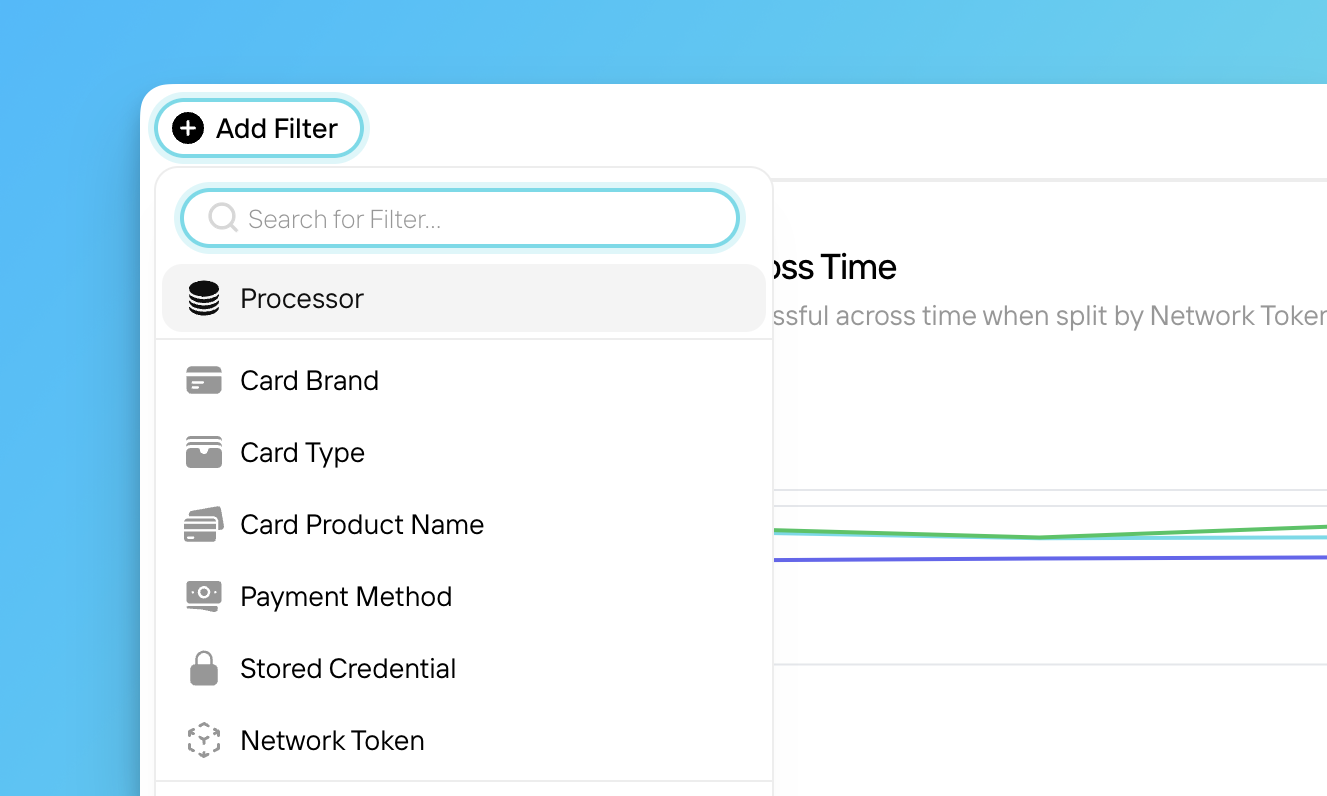 ## Applying Filters
Click the drop-down menu in the top-right corner of the dashboard.
Click **Add Filter**.
Click a filter in the drop-down menu, select your preferred filter parameters, then click **Apply Filters**.
Click **More Filters**, then repeat the previous steps to select a filter and the desired filter parameters.
## Filter Options
Depending on the page or section of Insights you're in, you may see any of the following filter options:
Set a date range, along with a time interval to break the data down by (hourly, daily, weekly, monthly, quarterly, or yearly). Keep in mind, hourly data for a date range more than 3 months ago will have slow load times.
View data for transactions processed through the selected data connections; you can filter down to the Processor, Data Source Name, or even the Merchant Account ID level. If you've [assigned aliases to your Merchant Account IDs](/importing-data/managing-data-connections#adding-a-merchant-account-id-alias), those alias names will appear in the filter menu.
View data for transactions made using payment cards from the selected card brands.
View data for transactions made with the selected payment card types (e.g. credit, debit, prepaid).
View data for transactions made with the selected [card product](/payments-basics/card-brand-services/bin-product-code-guide).
View data for transactions made with the selected payment methods (e.g. amazon\_pay, android\_pay, apple\_pay, card, google\_pay, PayPal wallet, sepa, klarna, and ideal).
View data for the selected transaction types, identified by their use of [stored payment credentials](/payments-basics/the-stored-credential-field) (e.g. one-time, recurring, installment).
View data for transactions made with customer primary account numbers (PANs) or network tokens.
View data for transactions with the selected status at the time indicated in the **Date Range** filter.
View data for transactions with the selected issuer response codes (e.g. do\_not\_honor, expired\_card, decline\_gateway, etc.).
View data for transactions whose total value was greater than, less than, or between the indicated amount(s) in USD; for transactions processed in other currencies, view data for transactions whose total value converts to the filtered USD amount.
Remove duplicate transaction data (e.g. [retries](/payments-basics/transaction-retry-deduplication)) from your visualizations. At this time, the retry deduplication filter doesn't apply to duplicate retries processed through PayPal, dLocal, or Klarna.
If you imported historical payments data into your Pagos account at signup, the retry deduplication filter may not apply to your historical data. Some processors don't provide all the necessary details (e.g. BIN, last four digits, or expiration date) with historical data imports to meet the retry filter's logic.
View data for transactions made using payment cards issued by the selected issuing banks.
View data for transactions made with cards issued in the selected regions.
View data for transactions made with cards issued in the selected countries.
View data for transactions made by customers located in the selected regions.
View data for transactions made by customers located in the selected countries.
View data for transactions processed in the selected presentment currencies.
View data for transactions made with payment cards with the selected bank identifier numbers (BINs).
View data for transactions with the selected [CVV response codes](/response-codes/cvv-check-response-codes).
View data for transactions with the selected [AVS line codes](/response-codes/avs-response-codes#avs-line-code).
View data for transactions with the selected [AVS post codes](/response-codes/avs-response-codes#avs-post-code).
View data for disputed transactions resolved by Visa as Rapid Dispute Resolution. Transactions from any other card brand will be categorized as *No Value Provided*.
View data only for disputed transactions with the selected [chargeback status code](/response-codes/chargebacks/chargeback-status-codes).
View data only for disputed transactions with the selected [chargeback reason code](/response-codes/chargebacks/chargeback-reason-codes).
View data for Adyen transactions tagged with specific retry flags (Adyen retries some failed transaction attempts multiple times based on their own internal logic; when we pull your transaction data from Adyen, we only ingest the final attempt of a retried Adyen transaction, tagging it with a custom retry flag indicating the total number of times Adyen attempted the transaction).
View data for transactions the processor collected device data for or did not. At this time, this filter only applies to transactions processed through Braintree; transactions processed through other processors will be categorized under *No Value Provided*.
View data for transactions tagged with specific soft descriptors; if you're unsure what soft descriptors you currently use, check out the **Soft Descriptors** tab in the [**Custom Data**](/insights/custom-data#soft-descriptors) section of your Pagos account.
View data for transactions tagged with specific metadata. Click **Metadata Name** to select the metadata field, enter the metadata value, then click **Add**; if you're unsure what metadata values you currently use, check out the **Metadata** tab in the [**Custom Data**](/insights/custom-data#metadata) section of your Pagos account.
View cost data associated with specific [fee types](/response-codes/fees/fee-type-codes).
View cost data associated with specific [fee categories](/response-codes/fees/fee-type-category-codes).
View cost data associated with specific [fee subcategories](/response-codes/fees/fee-type-subcategory-codes).
Use the text field to enter a specific raw fee name as it appears in your processor data. The field uses *contains* logic, meaning we'll filter for all raw fee names containing the text you enter. Apply the filter, then export your **Aggregated Data**; the **Fee Descriptions** column identifies the exact raw fee names you filtered for.
## Applying Filters
Click the drop-down menu in the top-right corner of the dashboard.
Click **Add Filter**.
Click a filter in the drop-down menu, select your preferred filter parameters, then click **Apply Filters**.
Click **More Filters**, then repeat the previous steps to select a filter and the desired filter parameters.
## Filter Options
Depending on the page or section of Insights you're in, you may see any of the following filter options:
Set a date range, along with a time interval to break the data down by (hourly, daily, weekly, monthly, quarterly, or yearly). Keep in mind, hourly data for a date range more than 3 months ago will have slow load times.
View data for transactions processed through the selected data connections; you can filter down to the Processor, Data Source Name, or even the Merchant Account ID level. If you've [assigned aliases to your Merchant Account IDs](/importing-data/managing-data-connections#adding-a-merchant-account-id-alias), those alias names will appear in the filter menu.
View data for transactions made using payment cards from the selected card brands.
View data for transactions made with the selected payment card types (e.g. credit, debit, prepaid).
View data for transactions made with the selected [card product](/payments-basics/card-brand-services/bin-product-code-guide).
View data for transactions made with the selected payment methods (e.g. amazon\_pay, android\_pay, apple\_pay, card, google\_pay, PayPal wallet, sepa, klarna, and ideal).
View data for the selected transaction types, identified by their use of [stored payment credentials](/payments-basics/the-stored-credential-field) (e.g. one-time, recurring, installment).
View data for transactions made with customer primary account numbers (PANs) or network tokens.
View data for transactions with the selected status at the time indicated in the **Date Range** filter.
View data for transactions with the selected issuer response codes (e.g. do\_not\_honor, expired\_card, decline\_gateway, etc.).
View data for transactions whose total value was greater than, less than, or between the indicated amount(s) in USD; for transactions processed in other currencies, view data for transactions whose total value converts to the filtered USD amount.
Remove duplicate transaction data (e.g. [retries](/payments-basics/transaction-retry-deduplication)) from your visualizations. At this time, the retry deduplication filter doesn't apply to duplicate retries processed through PayPal, dLocal, or Klarna.
If you imported historical payments data into your Pagos account at signup, the retry deduplication filter may not apply to your historical data. Some processors don't provide all the necessary details (e.g. BIN, last four digits, or expiration date) with historical data imports to meet the retry filter's logic.
View data for transactions made using payment cards issued by the selected issuing banks.
View data for transactions made with cards issued in the selected regions.
View data for transactions made with cards issued in the selected countries.
View data for transactions made by customers located in the selected regions.
View data for transactions made by customers located in the selected countries.
View data for transactions processed in the selected presentment currencies.
View data for transactions made with payment cards with the selected bank identifier numbers (BINs).
View data for transactions with the selected [CVV response codes](/response-codes/cvv-check-response-codes).
View data for transactions with the selected [AVS line codes](/response-codes/avs-response-codes#avs-line-code).
View data for transactions with the selected [AVS post codes](/response-codes/avs-response-codes#avs-post-code).
View data for disputed transactions resolved by Visa as Rapid Dispute Resolution. Transactions from any other card brand will be categorized as *No Value Provided*.
View data only for disputed transactions with the selected [chargeback status code](/response-codes/chargebacks/chargeback-status-codes).
View data only for disputed transactions with the selected [chargeback reason code](/response-codes/chargebacks/chargeback-reason-codes).
View data for Adyen transactions tagged with specific retry flags (Adyen retries some failed transaction attempts multiple times based on their own internal logic; when we pull your transaction data from Adyen, we only ingest the final attempt of a retried Adyen transaction, tagging it with a custom retry flag indicating the total number of times Adyen attempted the transaction).
View data for transactions the processor collected device data for or did not. At this time, this filter only applies to transactions processed through Braintree; transactions processed through other processors will be categorized under *No Value Provided*.
View data for transactions tagged with specific soft descriptors; if you're unsure what soft descriptors you currently use, check out the **Soft Descriptors** tab in the [**Custom Data**](/insights/custom-data#soft-descriptors) section of your Pagos account.
View data for transactions tagged with specific metadata. Click **Metadata Name** to select the metadata field, enter the metadata value, then click **Add**; if you're unsure what metadata values you currently use, check out the **Metadata** tab in the [**Custom Data**](/insights/custom-data#metadata) section of your Pagos account.
View cost data associated with specific [fee types](/response-codes/fees/fee-type-codes).
View cost data associated with specific [fee categories](/response-codes/fees/fee-type-category-codes).
View cost data associated with specific [fee subcategories](/response-codes/fees/fee-type-subcategory-codes).
Use the text field to enter a specific raw fee name as it appears in your processor data. The field uses *contains* logic, meaning we'll filter for all raw fee names containing the text you enter. Apply the filter, then export your **Aggregated Data**; the **Fee Descriptions** column identifies the exact raw fee names you filtered for.