> ## Documentation Index
> Fetch the complete documentation index at: https://docs.pagos.ai/llms.txt
> Use this file to discover all available pages before exploring further.
# Events
> Events provides your business with a unified view of every transaction—across all your processors—fully harmonized and delivered in one place. Payments, refunds, chargebacks, disputes: all your data, cleaned, structured, and ready for analysis.
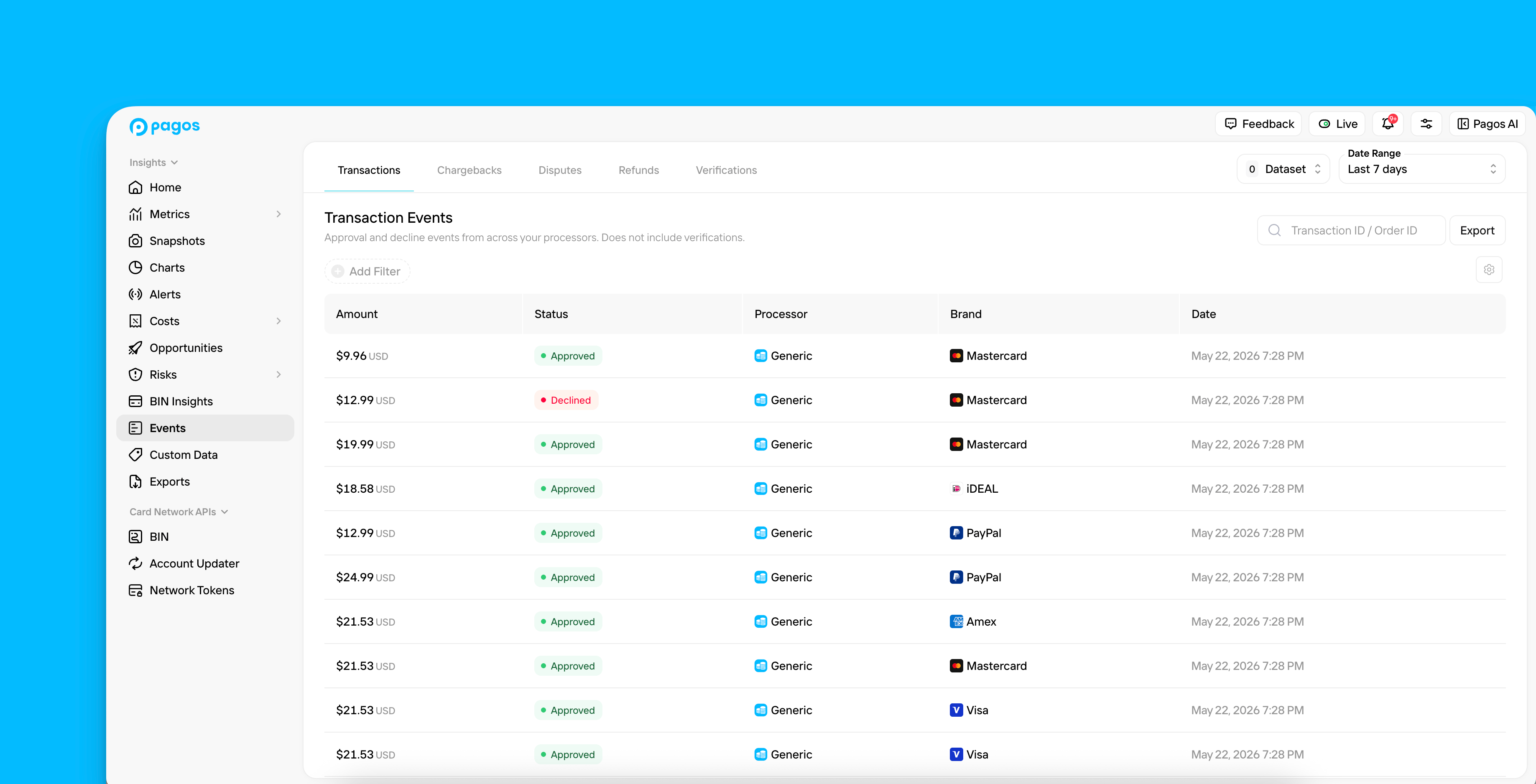 After you identify a pattern, trend, or anomaly in your payments performance, your next step is identifying the "why." To do so, you need to drill down to the exact transactions associated with the concerning change. With Events, you have instant access to transaction-level insights, allowing you can unlock a new level of insight and control over your payments.
## Navigating Events
Click **Events** in the main navigation.
Click the desired tab at the top of the page to explore events for **Transactions**, card **Chargebacks**, non-card **Disputes**, **Refunds**, or **Verifications**.
Use the **Date Range** filter in the top-right corner of the page to select the time period you want to view events for.
Click **...** in the top-right corner of the table. **Visible Columns** lists the columns that appear in your Transaction Events table. **Available Columns** lists all potential [column options](#transaction-events-column-options) you can configure.
* Drag and drop the options under **Visible Columns** to rearrange their order.
* Click on an option under **Available Columns** to add it to the **Visible Columns** list.
* Click the **X** beside an option name to remove it from your **Visible Columns** list.
* Click **Apply** to save your column configurations.
Your column configurations are specific to your Pagos account. Each member of your [Organization](/getting-started/managing-your-pagos-organization) can configure their own Transaction Events table.
To apply a [filter](/insights/insights-data-filters#filter-options), click **Add Filter** above the chart, then click a filter in the drop-down menu; select your preferred filter parameters and click **Apply Filters**. To remove a filter, click the **X** beside the filter name.
Click **Dataset** to filter out duplicate or pending transactions:
* Click the **Deduplicate** toggle to turn on this filter, then select the type of transactions you want to deduplicate; the options include [**Retries**](/payments-basics/transaction-retry-deduplication) and any custom deduplication options you've set up. This option is only available in the **Transactions** tab.
* Click the **Pending Transactions** toggle to remove pending transactions from your events data.
To search for specific events in any given tab, type the event ID (e.g. Transaction ID, Refund ID, etc.) or Order ID into the search bar, then press *Enter*.
Click on a single event to open a [**Details**](#event-details-page) page containing additional information on the event.
The details for an event in the Chargebacks, Disputes, or Refunds tabs will contain a **Pagos Transation ID**, identifying the original transaction associated with that event. Click this value to view the details for that specific transaction.
If you’re subscribed to [Transaction-Level Data Exports](/insights/data-exports), click **Export**, then click **Transaction-Level Data** to download your complete event data. Downloaded events appear in your Exports page; keep in mind, each report download is subject to your pricing agreement.
### Transaction Events: Column Options
You can select from the following column options when customizing the Events table on the **Transactions** tab:
* Amount
* Date
* Processor
* Data Connection
* MID
* BIN
* Issuing Bank
* Issuing Country
* Card Brand
* Card Type
* Payment Method
* Stored Credential
* Presentment Currency
* Order ID
* Soft Descriptor
* Transaction Response Code
* Transaction Status
## Event Details Page
The **Details** page for a given event contains all the information we've ingested from your data connections about that event, organized into the following categories:
* **Event Details** - Response code, CVV code, status, stored credential, network advice, acquirer reference number, and more (available details depends on the event type)
* **Processor Details** - Data connection, MID, and processor transaction ID
* **Payment Method Details** - Payment method type, issuer country, BIN (if applicable), and more
* **Settlement Details** -
* **Costs & Fees** - Transaction-level fee information
* **Additional Data** - Confirmation if the associated transaction was refunded or disputed, the retry attempt (if provided), the soft descriptor, and the [POS Entry Mode](/response-codes/pos-entry-mode-codes)
After you identify a pattern, trend, or anomaly in your payments performance, your next step is identifying the "why." To do so, you need to drill down to the exact transactions associated with the concerning change. With Events, you have instant access to transaction-level insights, allowing you can unlock a new level of insight and control over your payments.
## Navigating Events
Click **Events** in the main navigation.
Click the desired tab at the top of the page to explore events for **Transactions**, card **Chargebacks**, non-card **Disputes**, **Refunds**, or **Verifications**.
Use the **Date Range** filter in the top-right corner of the page to select the time period you want to view events for.
Click **...** in the top-right corner of the table. **Visible Columns** lists the columns that appear in your Transaction Events table. **Available Columns** lists all potential [column options](#transaction-events-column-options) you can configure.
* Drag and drop the options under **Visible Columns** to rearrange their order.
* Click on an option under **Available Columns** to add it to the **Visible Columns** list.
* Click the **X** beside an option name to remove it from your **Visible Columns** list.
* Click **Apply** to save your column configurations.
Your column configurations are specific to your Pagos account. Each member of your [Organization](/getting-started/managing-your-pagos-organization) can configure their own Transaction Events table.
To apply a [filter](/insights/insights-data-filters#filter-options), click **Add Filter** above the chart, then click a filter in the drop-down menu; select your preferred filter parameters and click **Apply Filters**. To remove a filter, click the **X** beside the filter name.
Click **Dataset** to filter out duplicate or pending transactions:
* Click the **Deduplicate** toggle to turn on this filter, then select the type of transactions you want to deduplicate; the options include [**Retries**](/payments-basics/transaction-retry-deduplication) and any custom deduplication options you've set up. This option is only available in the **Transactions** tab.
* Click the **Pending Transactions** toggle to remove pending transactions from your events data.
To search for specific events in any given tab, type the event ID (e.g. Transaction ID, Refund ID, etc.) or Order ID into the search bar, then press *Enter*.
Click on a single event to open a [**Details**](#event-details-page) page containing additional information on the event.
The details for an event in the Chargebacks, Disputes, or Refunds tabs will contain a **Pagos Transation ID**, identifying the original transaction associated with that event. Click this value to view the details for that specific transaction.
If you’re subscribed to [Transaction-Level Data Exports](/insights/data-exports), click **Export**, then click **Transaction-Level Data** to download your complete event data. Downloaded events appear in your Exports page; keep in mind, each report download is subject to your pricing agreement.
### Transaction Events: Column Options
You can select from the following column options when customizing the Events table on the **Transactions** tab:
* Amount
* Date
* Processor
* Data Connection
* MID
* BIN
* Issuing Bank
* Issuing Country
* Card Brand
* Card Type
* Payment Method
* Stored Credential
* Presentment Currency
* Order ID
* Soft Descriptor
* Transaction Response Code
* Transaction Status
## Event Details Page
The **Details** page for a given event contains all the information we've ingested from your data connections about that event, organized into the following categories:
* **Event Details** - Response code, CVV code, status, stored credential, network advice, acquirer reference number, and more (available details depends on the event type)
* **Processor Details** - Data connection, MID, and processor transaction ID
* **Payment Method Details** - Payment method type, issuer country, BIN (if applicable), and more
* **Settlement Details** -
* **Costs & Fees** - Transaction-level fee information
* **Additional Data** - Confirmation if the associated transaction was refunded or disputed, the retry attempt (if provided), the soft descriptor, and the [POS Entry Mode](/response-codes/pos-entry-mode-codes)