> ## Documentation Index
> Fetch the complete documentation index at: https://docs.pagos.ai/llms.txt
> Use this file to discover all available pages before exploring further.
# BIN Insights
> Identify the top BINs associated with payment cards you've processed, and use this information to gain valuable context on your customers and their preferred payment methods.
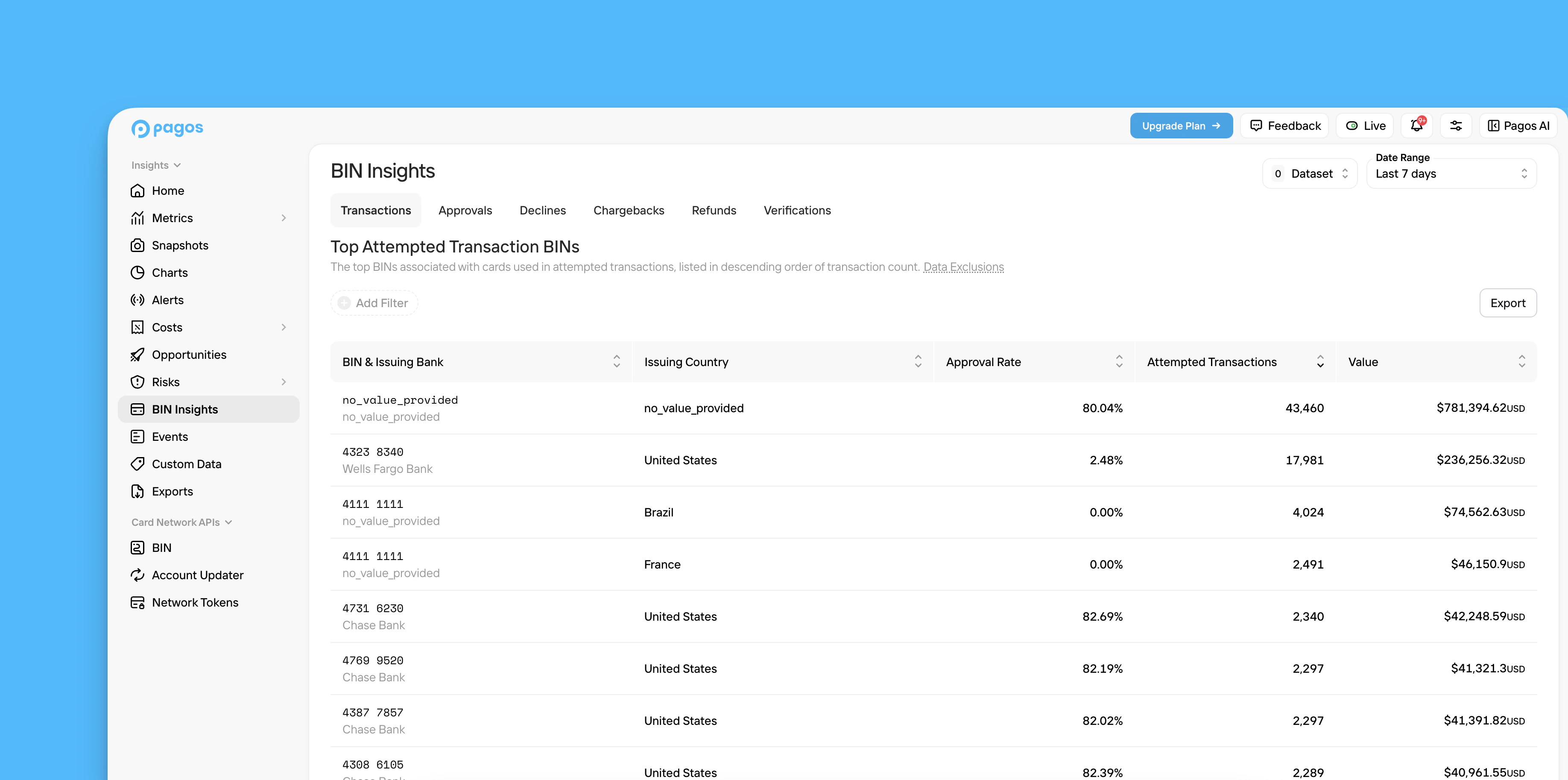 ## Navigating BIN Insights
Click **BIN Insights** in the main navigation.
Choose from the following tabs to populate your BINs table:
The top BINs associated with cards used in attempted transactions, listed in descending order of attempted transaction count; each row also contains the issuing bank, issuing country, approval rate, and total attempted transaction value
The top BINs associated with cards that were approved, listed in descending order of approved transaction count; each row also contains the issuing bank, issuing country, approval rate, and total approved transaction value
The top BINs associated with cards that were declined, listed in descending order of declined transaction count; each row also contains the issuing bank, issuing country, decline rate, and total declined transaction value
The top BINs associated with cards used in transactions that were ultimately disputed, listed in descending order of the disputed transaction count; each row also contains the issuing bank, issuing country, and total disputed transaction value
The top BINs associated with cards used in transactions that were ultimately refunded, listed in descending order of the refunded transaction count; each row also contains the issuing bank, issuing country, and total refunded transaction value
The top BINs associated with cards used in attempted verifications, listed in descending order of attempted verification count; each row also contains the issuing bank, issuing country, verification approval rate, and total attempted verification value
Use the **Date Range** filter in the top-right corner of the page to select the time period you want to view BIN data for.
To apply a [filter](/insights/insights-data-filters#filter-options), click **Add Filter** above the table, then click a filter in the drop-down menu; select your preferred filter parameters and click **Apply Filters**. To remove a filter, click the **X** beside the filter name.
Click **Dataset** to filter out duplicate or pending transactions (this features is only available in the **Transactions**, **Approvals**, and **Declines** tabs):
* Click the **Deduplicate** toggle to turn on this filter, then select the type of transactions you want to deduplicate; the options include [**Retries**](/payments-basics/transaction-retry-deduplication) and any custom deduplication options you've set up.
* Click the **Pending Transactions** toggle to remove pending transactions from your BIN data.
Click any column header to sort the table by that column in descending order; click it again to sort in ascending order.
Click **Export** to download a CSV file of the data in that tab's table.
Click on a single event to open a [**BIN Details**](#bin-details) page containing additional information about the BIN.
## BIN Details
From any BIN Insights tab, click a row in the table to open a corresponding **BIN Details** page. This page lists all the standard and enhanced data we have in our BIN database for a given BIN. For a full list of the data fields available, see our [BIN Data API Dictionary](/bin-data-APIs/bin-data-api-dictionary).
On the right side of the BIN Details page, we display **Processing Activity** for the BIN. This includes:
* Attempted transaction count and cumulative value
* Approved transaction count, cumulative value, and approval rate
* Declined transaction count, cumulative value, and decline rate
* Total chargeback count and cumulative value
* Total refund count and cumulative value
* Verified transaction count, cumulative value, and verification rate
## Navigating BIN Insights
Click **BIN Insights** in the main navigation.
Choose from the following tabs to populate your BINs table:
The top BINs associated with cards used in attempted transactions, listed in descending order of attempted transaction count; each row also contains the issuing bank, issuing country, approval rate, and total attempted transaction value
The top BINs associated with cards that were approved, listed in descending order of approved transaction count; each row also contains the issuing bank, issuing country, approval rate, and total approved transaction value
The top BINs associated with cards that were declined, listed in descending order of declined transaction count; each row also contains the issuing bank, issuing country, decline rate, and total declined transaction value
The top BINs associated with cards used in transactions that were ultimately disputed, listed in descending order of the disputed transaction count; each row also contains the issuing bank, issuing country, and total disputed transaction value
The top BINs associated with cards used in transactions that were ultimately refunded, listed in descending order of the refunded transaction count; each row also contains the issuing bank, issuing country, and total refunded transaction value
The top BINs associated with cards used in attempted verifications, listed in descending order of attempted verification count; each row also contains the issuing bank, issuing country, verification approval rate, and total attempted verification value
Use the **Date Range** filter in the top-right corner of the page to select the time period you want to view BIN data for.
To apply a [filter](/insights/insights-data-filters#filter-options), click **Add Filter** above the table, then click a filter in the drop-down menu; select your preferred filter parameters and click **Apply Filters**. To remove a filter, click the **X** beside the filter name.
Click **Dataset** to filter out duplicate or pending transactions (this features is only available in the **Transactions**, **Approvals**, and **Declines** tabs):
* Click the **Deduplicate** toggle to turn on this filter, then select the type of transactions you want to deduplicate; the options include [**Retries**](/payments-basics/transaction-retry-deduplication) and any custom deduplication options you've set up.
* Click the **Pending Transactions** toggle to remove pending transactions from your BIN data.
Click any column header to sort the table by that column in descending order; click it again to sort in ascending order.
Click **Export** to download a CSV file of the data in that tab's table.
Click on a single event to open a [**BIN Details**](#bin-details) page containing additional information about the BIN.
## BIN Details
From any BIN Insights tab, click a row in the table to open a corresponding **BIN Details** page. This page lists all the standard and enhanced data we have in our BIN database for a given BIN. For a full list of the data fields available, see our [BIN Data API Dictionary](/bin-data-APIs/bin-data-api-dictionary).
On the right side of the BIN Details page, we display **Processing Activity** for the BIN. This includes:
* Attempted transaction count and cumulative value
* Approved transaction count, cumulative value, and approval rate
* Declined transaction count, cumulative value, and decline rate
* Total chargeback count and cumulative value
* Total refund count and cumulative value
* Verified transaction count, cumulative value, and verification rate