> ## Documentation Index
> Fetch the complete documentation index at: https://docs.pagos.ai/llms.txt
> Use this file to discover all available pages before exploring further.
# Network Tokens
> Monitor and manage the Network Tokenization API.
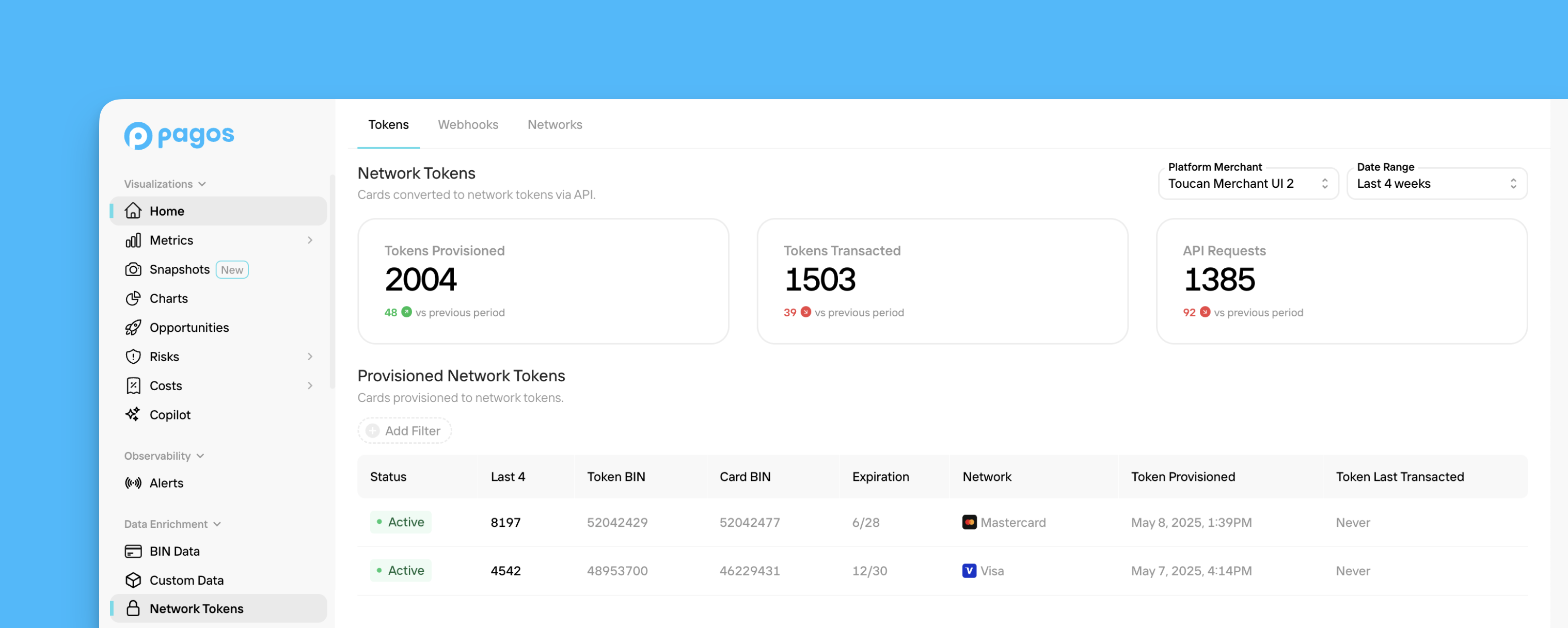 All [Pagos Network Tokenization](https://pagos.ai/product/network-tokens) subscribers can access the **Network Tokens** section of the Pagos Service Panel
[Network tokenization](/payments-basics/card-brand-services/network-tokenization) is a system through which card brands (e.g. Visa, Mastercard, Discover, and Amex Direct) substitute payment card primary account numbers (PANs) and other card details in payment tokens that they share with merchants. Because these tokens are provided by the network, it provides a streamlined way to securely move payment information through the transaction lifecycle.
With the Pagos [Network Tokenization API](/network-tokenization/overview), your business can seamlessly execute a network tokenization strategy without changing anything about your current payment stack. One simple integration allows you to quickly tokenize all the cards in your vault, regardless of network, thereby increasing your transaction approval rate, decreasing fraud risk, and improving customer experiences.
You can monitor and manage your usage of the Network Tokenization API in the Network Tokens section of the Pagos Service Panel. To do so, click **Network Tokens** under **Card Network APIs** in the main navigation. This section contains the following tabs:
* [Tokens](#tokens)
* [Webhooks](#webhooks)
* [Networks](#networks)
If you operate a platform providing network tokenization services to select merchants, you'll also have a [Merchants](#merchants) tab.
## Tokens
The **Tokens** tab provides a breakdown of the individual PANs you've sent to Pagos for tokenization via the [Network Tokenization API](/network-tokenization/overview). To navigate this tab:
Use the **Date Range** filter in the top-right corner of the page to select the time period you want to view data for.
If you operate a platform providing network tokenization services to a variety of merchants, use the **Platform Merchant** drop-down to select the merchant for whom you want to view token data.
The cards across the top of the page provide the following stats:
* **Tokens Provisioned** - The number of network tokens provisioned from primary account numbers
* **API Requests** - The number of requests sent to the Network Tokenization API
Each row in the table represents a token provisioned via the Network Tokenization API in the set time period, including the token status, token data (BIN, last four digits, expiration date), underlying card data (BIN and card network), and the date when the token was provisioned. Click **Add Filter** to filter the table for only those tokens with a specific status.
Click on a token to open a side panel with more details about the token and underlying PAN, including [card art details](/network-tokenization/overview#requesting-card-art) when available.
## Webhooks
From the **Webhooks** tab, you can add and edit [webhooks](/network-tokenization/overview#set-up-webhooks) for token status changes and lifecycle management updates. To do so:
In the Network Tokenization Webhook Endpoint box, click **Edit**.
Paste your endpoint URL in the text box.
Add your own secret key. Save this for [validating webhooks](/network-tokenization/webhooks#validating-webhooks) in the future.
Click **Save Webhook Endpoint**.
## Networks
From the **Networks** tab, you can view the card networks you're configured to provision network tokens from (American Express, Discover, Visa, and Mastercard). To enable or deactivate any networks, contact your Pagos Account Manager.
## Merchants
This tab only appears for platform merchants.
The **Merchants** tab includes a table listing the merchants operating within your platform. Each row contains the merchant name, primary contact, and creation date. Here, you'll also find each merchant's **Merchant ID**, used to identify individual merchants in the [API headers](/network-tokenization/headers) of calls to the Network Tokenization API.
All [Pagos Network Tokenization](https://pagos.ai/product/network-tokens) subscribers can access the **Network Tokens** section of the Pagos Service Panel
[Network tokenization](/payments-basics/card-brand-services/network-tokenization) is a system through which card brands (e.g. Visa, Mastercard, Discover, and Amex Direct) substitute payment card primary account numbers (PANs) and other card details in payment tokens that they share with merchants. Because these tokens are provided by the network, it provides a streamlined way to securely move payment information through the transaction lifecycle.
With the Pagos [Network Tokenization API](/network-tokenization/overview), your business can seamlessly execute a network tokenization strategy without changing anything about your current payment stack. One simple integration allows you to quickly tokenize all the cards in your vault, regardless of network, thereby increasing your transaction approval rate, decreasing fraud risk, and improving customer experiences.
You can monitor and manage your usage of the Network Tokenization API in the Network Tokens section of the Pagos Service Panel. To do so, click **Network Tokens** under **Card Network APIs** in the main navigation. This section contains the following tabs:
* [Tokens](#tokens)
* [Webhooks](#webhooks)
* [Networks](#networks)
If you operate a platform providing network tokenization services to select merchants, you'll also have a [Merchants](#merchants) tab.
## Tokens
The **Tokens** tab provides a breakdown of the individual PANs you've sent to Pagos for tokenization via the [Network Tokenization API](/network-tokenization/overview). To navigate this tab:
Use the **Date Range** filter in the top-right corner of the page to select the time period you want to view data for.
If you operate a platform providing network tokenization services to a variety of merchants, use the **Platform Merchant** drop-down to select the merchant for whom you want to view token data.
The cards across the top of the page provide the following stats:
* **Tokens Provisioned** - The number of network tokens provisioned from primary account numbers
* **API Requests** - The number of requests sent to the Network Tokenization API
Each row in the table represents a token provisioned via the Network Tokenization API in the set time period, including the token status, token data (BIN, last four digits, expiration date), underlying card data (BIN and card network), and the date when the token was provisioned. Click **Add Filter** to filter the table for only those tokens with a specific status.
Click on a token to open a side panel with more details about the token and underlying PAN, including [card art details](/network-tokenization/overview#requesting-card-art) when available.
## Webhooks
From the **Webhooks** tab, you can add and edit [webhooks](/network-tokenization/overview#set-up-webhooks) for token status changes and lifecycle management updates. To do so:
In the Network Tokenization Webhook Endpoint box, click **Edit**.
Paste your endpoint URL in the text box.
Add your own secret key. Save this for [validating webhooks](/network-tokenization/webhooks#validating-webhooks) in the future.
Click **Save Webhook Endpoint**.
## Networks
From the **Networks** tab, you can view the card networks you're configured to provision network tokens from (American Express, Discover, Visa, and Mastercard). To enable or deactivate any networks, contact your Pagos Account Manager.
## Merchants
This tab only appears for platform merchants.
The **Merchants** tab includes a table listing the merchants operating within your platform. Each row contains the merchant name, primary contact, and creation date. Here, you'll also find each merchant's **Merchant ID**, used to identify individual merchants in the [API headers](/network-tokenization/headers) of calls to the Network Tokenization API.